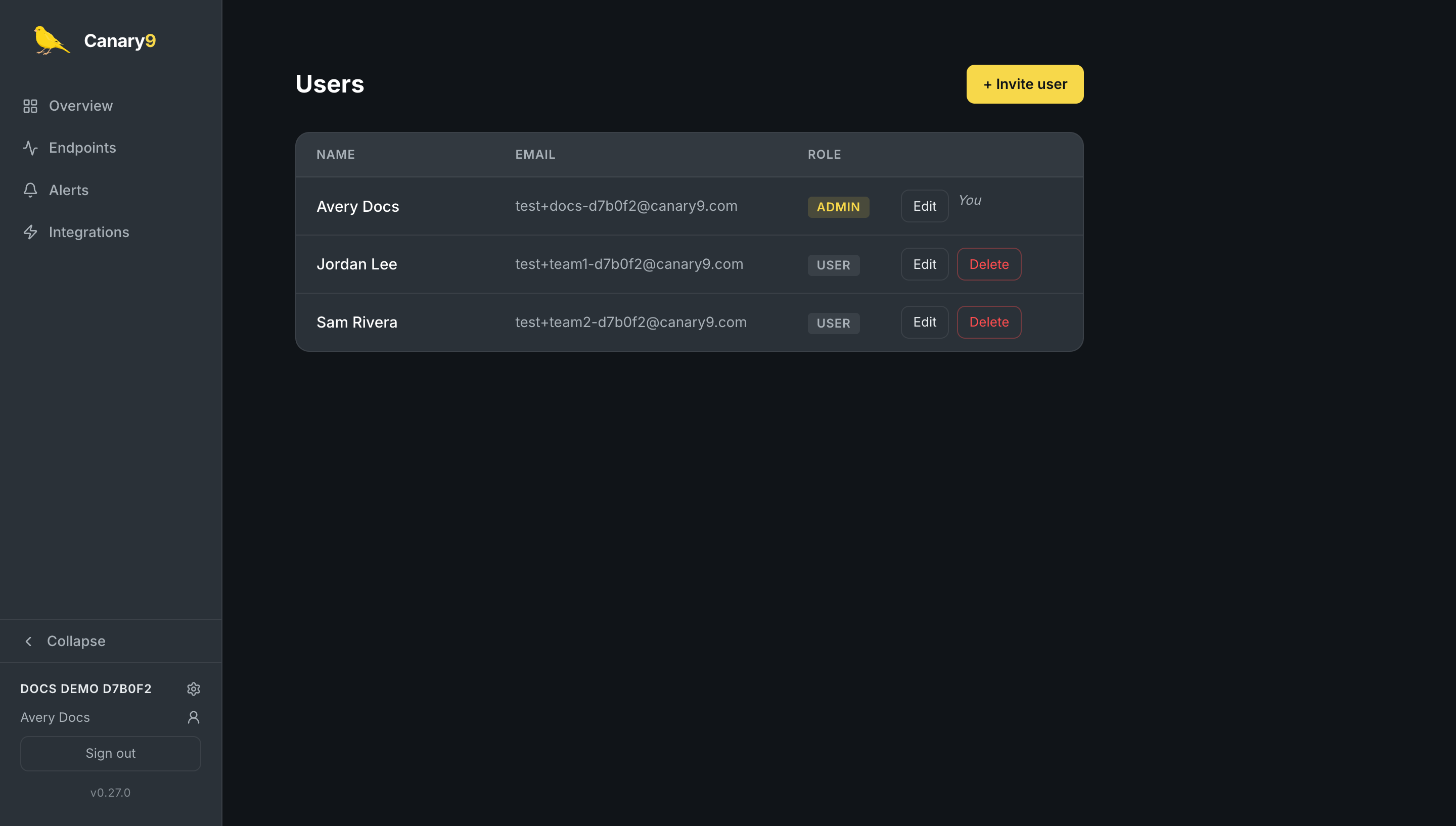
Account & team
Manage your own account from Settings, and (if you're an admin) manage your organization and teammates from the admin area.
Your profile & password
Open Settings from the user menu in the sidebar:
- Profile: update your name and email.
- Security: change your password (enter your current password, then the new one twice).
- Two-factor authentication: add a second factor; see the dedicated 2FA guide.
Display preferences
Under Display, the Expand multiple endpoints toggle controls whether opening one endpoint's detail view collapses the others (off, the default) or lets several stay open at once (on). Your choice is remembered in your browser.
Roles
Every member of an organization has a role:
Admin
Full access: manages the organization, invites and removes members, and changes roles, in addition to all monitoring features.
User
Day-to-day access to endpoints, alerts, and integrations, without organization or member management.
Organization settings (admin)
Admins get an Organization area (the gear next to your organization name in the sidebar) to rename the organization and see the member count. Non-admins don't see these controls.
Manage your team (admin)
From the admin area, admins can:
- Invite a member: provide their name, email, a temporary password, and a role (User or Admin).
- Edit a member: change their name or role.
- Remove a member: delete their access (you can't remove yourself, and you can't change your own role).